Optional Components
Monitor all components in CANARIE node, both public and internal URL
So that the URL https://<BIRDHOUSE_FQDN>/canarie/node/service/stats also return
what the end user really see (a component might work but is not accessible to
the end user).
This assume all the WPS services are public. If not the case, make a copy of this config and adjust accordingly.
How to enable this config in env.local (a copy from env.local.example):
Add
./optional-components/canarie-api-full-monitoringtoBIRDHOUSE_EXTRA_CONF_DIRS.
Scheduler Jobs
All jobs depend on the ./components/scheduler component.
Refer to its documentation for more details about the scheduler and its functionalities.
Note
The ./components/scheduler MUST be added explicitly to BIRDHOUSE_EXTRA_CONF_DIRS.
The respective jobs will NOT auto-include it as COMPONENT_DEPENDENCIES in order to allow quick configuration
and activation/deactivation of the main component without the need to configure each job individually.
Following are the available jobs that are predefined for convenience.
Further custom jobs can be added by following the instructions in the ./components/scheduler documentation.
Scheduler Job - Autodeploy
Enable automatic deployment.
Additional description of this can be found in the Automated Deployment section.
How to enable in env.local (a copy from env.local.example):
Add
./optional-components/scheduler-job-autodeploytoBIRDHOUSE_EXTRA_CONF_DIRS.
Scheduler Job - Log Rotate
Automatically rotate and manage the birdhouse log files located in the directory specified by BIRDHOUSE_LOG_DIR.
How to enable in env.local (a copy from env.local.example):
Add
./optional-components/scheduler-job-logrotatetoBIRDHOUSE_EXTRA_CONF_DIRS.
Scheduler Job - Log Rotate Nginx
Creates a configuration to automatically rotate and manage the proxy log files.
It is relevant to rotate those files when they are parsed by ./components/canarie-api for service access
and monitoring purposes, to avoid parsing excessively large log files.
How to enable in env.local (a copy from env.local.example):
Add
./optional-components/scheduler-job-logrotate-nginxtoBIRDHOUSE_EXTRA_CONF_DIRS.
Scheduler Job - Notebook Deploy
Automatically update tutorial notebooks that are displayed to users who run Jupyterlab servers
through the jupyterhub component.
This requires that the jupyterhub component is also enabled.
How to enable in env.local (a copy from env.local.example):
Add
./optional-components/scheduler-job-notebookdeploytoBIRDHOUSE_EXTRA_CONF_DIRS.
Scheduler Job - Renew LetsEncrypt SSL Certificate
Automatically renew an SSL certificate issued by LetsEncrypt on a schedule.
How to enable in env.local (a copy from env.local.example):
Add
./optional-components/scheduler-job-renew_letsencrypt_ssl_certtoBIRDHOUSE_EXTRA_CONF_DIRS.
Scheduler Job - Deploy xclim Test Data
Automatically deploy xclim test data to the thredds server and keeps it up to date (for test purposes).
This requires that the thredds component is also enabled.
How to enable in env.local (a copy from env.local.example):
Add
./optional-components/scheduler-job-deploy_xclim_testdatatoBIRDHOUSE_EXTRA_CONF_DIRS.
Scheduler Job - Deploy raven Test Data
Automatically deploy test data used by the raven WPS component to the thredds server and keeps it up to date (for test purposes).
This requires that the thredds and raven components also be enabled.
How to enable in env.local (a copy from env.local.example):
Add
./optional-components/scheduler-job-deploy_raven_testdatatoBIRDHOUSE_EXTRA_CONF_DIRS.
Scheduler Job - Clean Old Files
Automatically remove files generated by other components that may accumulate over time and are not managed automatically by those components.
Currently supports removing WPS output files from the finch, raven, and hummingbird components
as well as log files from the thredds component.
How to enable in env.local (a copy from env.local.example):
Add
./optional-components/scheduler-job-clean_old_filestoBIRDHOUSE_EXTRA_CONF_DIRS.
Scheduler Job - Backup
Automatically back up application data, user data, representative data, and logs to a restic repository (default) or a docker volume.
This uses the bin/birdhouse backup create command (see additional information in the Backups documentation).
How to enable in env.local (a copy from env.local.example):
Add
./optional-components/scheduler-job-backuptoBIRDHOUSE_EXTRA_CONF_DIRS.
Emu WPS service for testing
Preconfigured for Emu but can also be used to quickly deploy any WPS birds temporarily without changing code. Good to preview new birds or test alternative configuration of existing birds.
No Postgres DB configured. If need Postgres DB, use ./optional-components/generic_bird instead.
How to enable Emu in env.local (a copy from env.local.example):
Add
./optional-components/emutoBIRDHOUSE_EXTRA_CONF_DIRS.Optionally set
EMU_IMAGE,EMU_NAME,EMU_INTERNAL_PORT,EMU_WPS_OUTPUTS_VOLinenv.localfor further customizations. Default values are inoptional-components/emu/default.env.
Emu service will be available at
${BIRDHOUSE_PROXY_SCHEME}://${BIRDHOUSE_FQDN_PUBLIC}/${TWITCHER_PROTECTED_PATH}/${EMU_NAME} where
BIRDHOUSE_PROXY_SCHEME, BIRDHOUSE_FQDN, BIRDHOUSE_FQDN_PUBLIC and TWITCHER_PROTECTED_PATH are defined
in your env.local.
Magpie will be automatically configured to give complete public anonymous access for this Emu WPS service.
./components/canarie-api monitoring will also be automatically configured for this Emu WPS service.
A second THREDDS server for testing
How to enable in env.local (a copy from env.local.example):
Add
./optional-components/testthreddstoBIRDHOUSE_EXTRA_CONF_DIRS.Optionally set
TESTTHREDDS_IMAGE,TESTTHREDDS_PORT,TESTTHREDDS_CONTEXT_ROOT,TESTTHREDDS_WARFILE_NAME,TESTTHREDDS_INTERNAL_PORT,TESTTHREDDS_NAME, inenv.localfor further customizations. Default values are inoptional-components/testthredds/default.env.
Test THREDDS service will be available at
http://BIRDHOUSE_FQDN:TESTTHREDDS_PORT/TESTTHREDDS_CONTEXT_ROOT or
https://BIRDHOUSE_FQDN_PUBLIC/TESTTHREDDS_CONTEXT_ROOT where BIRDHOUSE_FQDN and
BIRDHOUSE_FQDN_PUBLIC are defined in your env.local.
Use same docker image as regular THREDDS by default but can be customized.
New container have new TestDatasets with volume-mount to /data/testdatasets
on the host. So your testing .nc and .ncml files should be added to
/data/testdatasets on the host for them to show up on this Test THREDDS
server.
TestWps_Output dataset is for other WPS services to write to, similar to
birdhouse/wps_outputs dataset in the production THREDDS. With Emu, add
export EMU_WPS_OUTPUTS_VOL=testwps_outputs to env.local for Emu to write to
TestWps_Output dataset.
No Twitcher/Magpie access control, this Test THREDDS is directly behind the Nginx proxy.
./components/canarie-api monitoring will also be automatically configured for this second
THREDDS server.
A generic bird WPS service
Can be used to quickly deploy any birds temporarily without changing code. Good to preview new birds or test alternative configuration of existing birds.
How to enable in env.local (a copy from env.local.example):
Add
./optional-components/generic_birdtoBIRDHOUSE_EXTRA_CONF_DIRS.Optionally set
GENERIC_BIRD_IMAGE,GENERIC_BIRD_PORT,GENERIC_BIRD_NAME,GENERIC_BIRD_INTERNAL_PORT, andGENERIC_BIRD_POSTGRES_IMAGEinenv.localfor further customizations. Default values are inoptional-components/generic_bird/default.env.
The WPS service will be available at
${BIRDHOUSE_PROXY_SCHEME}://${BIRDHOUSE_FQDN_PUBLIC}/${TWITCHER_PROTECTED_PATH}/${GENERIC_BIRD_NAME} where
BIRDHOUSE_PROXY_SCHEME, BIRDHOUSE_FQDN, BIRDHOUSE_FQDN_PUBLIC and TWITCHER_PROTECTED_PATH are defined
in your env.local.
Use same docker image as regular Finch by default but can be customized.
Use a separate Postgres DB for this optional component to be completely
self-contained and to allow experimenting with different versions of Postgres
DB. This Postgres DB will be named generic_bird by default but can be customized by
setting the BIRDHOUSE_GENERIC_BIRD_POSTGRES_DB environment variable in env.local
in case that name clashes with the BIRDHOUSE_POSTGRES_DB variable.
Magpie will be automatically configured to give complete public anonymous access for this WPS service.
./components/canarie-api monitoring will also be automatically configured for this WPS service.
Enable health checks for WPS services
At any given time, WPS services could stop responding. Using the healthcheck feature from docker-compose, it is
possible to monitor the services at regular intervals to ensure they remain accessible. Using this, it is possible to
rapidly identify if a service might be misbehaving.
Since the various WPS services are executed using a different applications and dependencies in their respective
Docker images, the method required to validate their status can vary a lot for each case. This optional component
defines all the appropriate healthcheck for all known WPS services in Birdhouse.
How to enable in env.local (a copy from env.local.example):
Add
./optional-components/wps-healthcheckstoBIRDHOUSE_EXTRA_CONF_DIRS.
Once enabled, every WPS service will be monitored at regular intervals and docker-compose will indicate in their
health status. Command birdhouse-compose ps can be employed to list running images, and along with it, the statuses
reported by each healthcheck.
Give public access to all resources for testing purposes
By enabling this component, all WPS services and data on THREDDS are completely public, please beware.
Warning
Once enabled, if you need to revert the change, you have to do it manually by logging into Magpie.
Just disabling this component will not revert the change.
Alternatively, you can create a similar file to optional-components/all-public-access/all-public-access-magpie-permission.cfg and replace all desired action: create
entries by action: remove to make sure the permissions are removed at startup if they exist.
This optional component is required for the test suite at https://github.com/Ouranosinc/PAVICS-e2e-workflow-tests.
How to enable in env.local (a copy from env.local.example):
Add
./optional-components/all-public-accesstoBIRDHOUSE_EXTRA_CONF_DIRS.
The anonymous user will now have all the permissions described in optional-components/all-public-access/all-public-access-magpie-permission.cfg.
Note
If using the ./components/stac feature, the corresponding ./optional-components/stac-public-access
must be applied as well to obtain similar functionalities to ./optional-components/all-public-access.
This optional component is kept separate since ./components/stac is not required by default, and therefore
cannot be enforced as a component dependency.
Note
Enabling ./optional-components/all-public-access could impact behaviour of other components
such as ./components/wps_outputs-volume and ./optional-components/secure-data-proxy if those are also included.
Please refer to their respective sections
(WPS Outputs Volume
and Secure Data Proxy) for more details.
Control secured access to generic data
It is possible to serve static data files through Nginx by mapping a directory to a specific URL path. This optional component provides a configurable location to serve such data.
See also
Following components can also employ this feature. However, they are not direct dependencies to allow flexibility.
How to enable in env.local (a copy from env.local.example):
Add
./optional-components/secure-data-proxytoBIRDHOUSE_EXTRA_CONF_DIRS.Optionally, set
SECURE_DATA_PROXY_ROOTto an alternate directory location on the machine to mount inproxy.Optionally, set
SECURE_DATA_PROXY_LOCATIONSwith additional Nginx definitions to protect and serve data from.
Once enabled, if a Nginx location with path-mapping alias contains the ${SECURE_DATA_PROXY_AUTH_INCLUDE}
definition, the data it would normally serve directly will NOT have public access from the specified location,
unless the authenticated user is granted access by relevant user or group permissions.
Permission management of these resources is controlled through Magpie under
the secure-data-proxy service (type: API). Resources names and nesting under secure-data-proxy service
should match exactly the location path expected by Nginx proxy.
See also
Refer to the optional-components/secure-data-proxy/default.env file for more details regarding the
structure of the SECURE_DATA_PROXY_LOCATIONS definition and all other variable
considerations implied with its usage.
Control secured access to WPS outputs
By default, all outputs of WPS processes (i.e.: /wpsoutputs) are publicly accessible. This is to preserve
backward compatibility with previous instances. However, enabling this optional component adds secured access to data
stored under /wpsoutputs.
To provide secured access, all requests sent to /wpsoutputs require a prior authorization from a new service added
to Magpie through ./optional-components/secure-data-proxy.
As shown below, this service should replicate the file system directory hierarchy defined to store the data.
For example, a file located under /wpsoutputs/weaver/public would use the corresponding resources and user/group
permissions defined under this secure-data-proxy service and its /wpsoutputs/[...] resources to
validate that the authenticated request user can obtain access to them.

Magpie Service for secure-data-proxy
As a result of combining ./components/wps_outputs-volume and ./optional-components/secure-data-proxy,
access control to the WPS outputs requests will be pre-validated as presented below. Access to the contents
will be controlled as defined by Magpie permissions resolution applied to the corresponding resources.
Because a pre-request operation is employed, once validated by Magpie, the authorized request will perform
the same way as when using ./components/wps_outputs-volume alone (public access).
The resulting data access will occur transparently by invoking services and users.
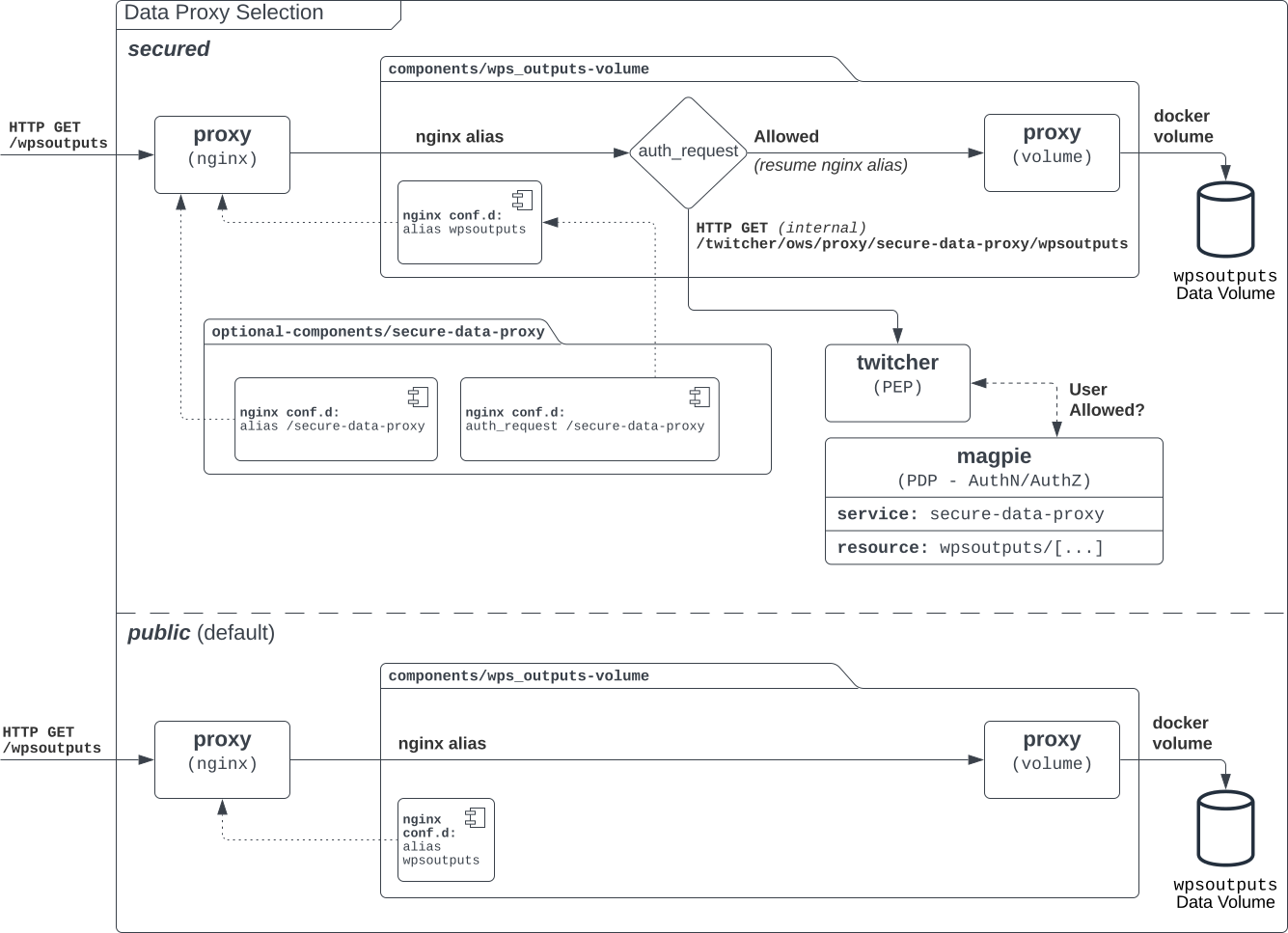
WPS outputs data requests using secured or public access control.
Note
Using ./optional-components/secure-data-proxy and ./components/wps_outputs-volume MAY allow public access
if the MAGPIE_ANONYMOUS_GROUP is granted read permission at the root of for the corresponding
secure-data-proxy/wpsoutputs resource. An example of such configuration is provided in
optional-components/all-public-access/secure-data-proxy/permissions.cfg when ./optional-components/all-public-access is enabled.
Alternatively, corresponding permissions can be set manually by the platform administrator for their specific needs.
The main difference of using this approach in contrast to pure ./components/wps_outputs-volume access would
be that platform administrator can leverage which users are accessing WPS outputs data when they are logged in,
and still allows them to revoke access (read-deny permission) to lower directory levels if needed.
How to enable in env.local (a copy from env.local.example):
Add
./optional-components/secure-data-proxytoBIRDHOUSE_EXTRA_CONF_DIRS.
Once enabled, users will _**NOT**_ have public access to files under /wpsoutputs anymore, except for items defined
with authorized read permissions for the anonymous group under optional-components/secure-data-proxy/config/magpie/config.yml.template. As any other
Magpie configuration file, any combination of user/group/resource/permission could be defined for
the ./optional-components/secure-data-proxy service to customize specific user access control to stored data files.
Control secured access to THREDDS resources example
Optional configuration optional-components/secure-thredds/secure-access-magpie-permission.cfg is provided as example to illustrate how to apply permissions on specific
THREDDS resources to limit their access publicly. This permission configuration can be combined with others, such as
magpie-public-access-config ones to formulate specific permissions schemes that matches your data structure and
desired access rules.
How to enable in env.local (a copy from env.local.example):
Add
./optional-components/secure-threddstoBIRDHOUSE_EXTRA_CONF_DIRS.
The anonymous user will NOT have access anymore to THREDDS test directory birdhouse/testdata/secure and any other
directories and files under it. Directories above and next to secure will still be accessible if
magpie-public-access-config component was also enabled.
On a typical server, custom and private permission rules should be provided in a similar fashion to ensure that each time a new instance is booted, the same scheme of access configuration is applied. Permissions applied manually into Magpie will not be replicated onto other server instance.
Control public exposure of database ports
Because databases may contain sensitive of private data, they should never be directly exposed. On the other hand, accessing them remotely can be practical for testing such as in a staging server environment.
This component is intended to automatically map the databases (PostgreSQL, MongoDB) as such.
How to enable in env.local (a copy from env.local.example):
Add
./optional-components/database-external-portstoBIRDHOUSE_EXTRA_CONF_DIRS.
That’s it. Databases will be accessible using the mapped ports in then optional component configuration.
Test Permissions for Weaver
In order to test functionalities offered by ./components/weaver component, this optional component
adds Magpie permissions to a test server in order to grant access to specific endpoints.
This will open public access to specified resources in file optional-components/test-weaver/config/magpie/test-weaver-permission.cfg.
Warning
It also disables SSL verification for the corresponding process that is granted public access to allow Weaver to requests its WPS execution through the providers reference without error. This is mainly to ignore test servers self-signed SSL certificates. This should be avoided on production servers by using a real and valid SSL certificate and leaving verification active to avoid man-in-the-middle attacks.
This optional component is intended to be employed in combination with test notebook Ouranosinc/pavics-sdi Weaver Example.
How to enable in env.local (a copy from env.local.example):
Add
./optional-components/test-weavertoBIRDHOUSE_EXTRA_CONF_DIRS
Note
Definition ./components/weaver is also expected to be in BIRDHOUSE_EXTRA_CONF_DIRS for permissions
to have any effect.
Ensure that ./optional-components/test-weaver is placed AFTER ./components/weaver. Otherwise, the
request_options.yml override applied by this optional component will be discarded by the main component.
Test Geoserver Secured Access
This optional component adds a new provider and location for Geoserver, test-geoserver-secured-access,
in order to test secured access to this service before it is moved behind Twitcher (undetermined date).
The old /geoserver path is still available, so current workflows are not affected.
The new /geoserver-secured path is available for testing once the optional component is activated.
To test the geoserver-secured service through Magpie, each workspace needs to be added to the new service
and then permissions can be set on a per-workspace or even layer basis.
A GetFeature request for a layer in a public workspace (named public in this example) will succeed for any user
using any of these two request types:
{BASE_URL}/geoserver-secured/wfs?version=2.0.0&request=GetFeature&typeNames=public:{LAYER_NAME}{BASE_URL}/geoserver-secured/public/wfs?version=2.0.0&request=GetFeature&typeNames={LAYER_NAME}
Whereas access to a private workspace will require a user or group be given explicit permissions through the Magpie interface.
See Pull Request for more details.
Test user workspace in JupyterLab when using Cowbird
This optional component is used to prepare the related notebook test, where a user workspace is validated in a JupyterLab environment spawned from JupyterHub and where Cowbird is used to prepare the user workspace.
The component will start a Docker container specifically made to run a Python script, where the different test requirements are initialized. This includes creating a test user, preparing different test files and setting permissions correctly. This component also customizes the JupyterHub config according to the test requirements.
Warning
This component should never be used in non-test environments, as it opens public access for certain endpoints, defines admin-tokens for a JupyterHub user for which credentials are clearly visible in the script, and enforces use of root access for the test preparation container. The component is for validation only. If used in a prod stack, it would create a security vulnerability.
Populate STAC catalog with sample data
STAC Populator contains the workflow logic to ingest sample STAC Item and Collection into the STAC catalog.
Once enabled in the stack, this component will run automatically on stack boot time in order to populate the catalog.
On stack initialization, STAC Item generation workflows will run for STAC_ASSET_GENERATOR_TIMEOUT seconds in order
to populate the catalog with sample data. Change this timeout as needed, as there are no impact on the stack boot,
except time required to feed the catalog.
To enable this optional-component:
Edit
env.local(a copy fromenv.local.example)Add
./optional-components/stac-populatortoBIRDHOUSE_EXTRA_CONF_DIRS.
Allow public access to STAC catalog
STAC Public Access allows STAC catalog to be accessed by anyone, without authentication.
To enable this optional-component:
Edit
env.local(a copy fromenv.local.example)Add
./optional-components/stac-public-accesstoBIRDHOUSE_EXTRA_CONF_DIRS.
Provide a proxy for local STAC asset hosting
STAC data proxy allows to host the URL location defined by BIRDHOUSE_FQDN_PUBLIC and STAC_DATA_PROXY_URL_PATH
to provide access to files contained within STAC_DATA_PROXY_DIR_PATH.
The STAC_DATA_PROXY_DIR_PATH location can be used to hold STAC Assets defined by the current server node
(in contrast to STAC definitions that would refer to remote locations), such that the node can be the original
location of new data, or to make a new local replication of remote data.
To enable this optional-component:
Edit
env.local(a copy fromenv.local.example)Add
./optional-components/stac-data-proxytoBIRDHOUSE_EXTRA_CONF_DIRS.Optionally, add any other relevant components to control access as desired (see below).
When using this component, access to the endpoint defined by STAC_DATA_PROXY_URL_PATH, and therefore all
corresponding files contained under mapped STAC_DATA_PROXY_DIR_PATH will depend on how this
feature is combined with ./optional-components/stac-public-access and ./optional-components/secure-data-proxy.
Following are the possible combinations and obtained behaviors:
Enabled Components |
Obtained Behaviors |
|---|---|
Only |
All data under |
Both |
All data under |
Both |
All data under |
All of |
Similar to the previous case, allowing full authorization management control by the administrator, but contents
are publicly accessible by default. To revoke access, a Magpie administrator has to apply a |
Persist STAC PostgreSQL database to alternate location
STAC metadata (published Collections and Items JSON) are stored by
default under /var/lib/docker/volumes/birdhouse_stac-db.
This optional component provides STAC_DB_PERSIST_DIR as a configurable variable to define an alternate location
as drive mount bind. By default, this value will be set to ${BIRDHOUSE_DATA_PERSIST_ROOT}/stac-db_persist.
To enable this optional-component:
Edit
env.local(a copy fromenv.local.example)Add
./optional-components/stac-db-persisttoBIRDHOUSE_EXTRA_CONF_DIRS.Optionally, configure any desired overrides for
STAC_DB_PERSIST_DIRand/orBIRDHOUSE_DATA_PERSIST_ROOT(note that settingBIRDHOUSE_DATA_PERSIST_ROOTaffects other components using the same root directory).
Note
This does not affect STAC data storage (i.e.: the referenced Assets) if any are defined on the server.
Refer to ./optional-components/stac-data-proxy for these considerations.
Warning
If the server was started prior to configuring this component, Docker might issue some warnings regarding the
stac-db volume being already defined with existing data contents. In such case, it is recommended to manually
perform following steps to migrate the data to the new location. This would also be required if the DB already has
published STAC metadata.
# Stop the server
birdhouse compose stop

# Move the data to desired location (might need sudo)
# Note that '_data' is automatically created by docker when named-volume is created,
# but mount bind path is directly the data contents
mv /var/lib/docker/volumes/birdhouse_stac-db/_data/* ${STAC_DB_PERSIST_DIR}/

# Remove the existing stac-db volume
docker volume rm birdhouse_stac-db

# <configure the component as described above>

# Restart the server
birdhouse compose up -d
Use the DGGS sample data and configuration
The ./components/dggs requires a valid configuration and data aligned with DGGS to start the API service.
This sample definition provides a minimal example of such definition.
In other circumstances, a custom definition would instead be employed with specific data sources, DGGRS definitions and other metadata. This sample is provided with minimal details to get things working.
To enable this optional-component:
Edit
env.local(a copy fromenv.local.example)Add
./optional-components/dggs-data-sampletoBIRDHOUSE_EXTRA_CONF_DIRS.
Warning
This component should not be employed if custom configurations are desired.
Variables will conflict and override the definitions required by ./components/dggs.
X-Robots-Tag Header
Applies the X-Robots-Tag header value defined by the X_ROBOTS_TAG_HEADER variable globally for the server.
If X_ROBOTS_TAG_HEADER is not overridden, it uses noindex, nofollow which will disallow most crawling and
indexing functionalities from robots. If omitting this optional component entirely, no X-Robots-Tag header
will be applied, which is equivalent to the robots default X-Robots-Tag: all, setting no restrictions regarding
indexing and serving.
How to enable X-Robots-Tag Header in env.local (a copy from env.local.example):
Add
./optional-components/x-robots-tag-headertoBIRDHOUSE_EXTRA_CONF_DIRS.Optionally set
X_ROBOTS_TAG_HEADERto an alternate directive as desired. Default values are inoptional-components/x-robots-tag-header/default.env.
Note
In order to revert the X-Robots-Tag header on specific endpoints, the following Nginx configuration can be
defined (other values than all are possible as well) under any location block of the server.
location /<service-path>/ {
    add_header X-Robots-Tag: "all";
    # ... other nginx operations ...
}
Note however that most Nginx configurations are predefined for this stack. Custom definitions would need to be
added to apply additional operations. One exception to this case is the Homepage location
(i.e.: where the / location will be redirected), which can take advantage of the BIRDHOUSE_PROXY_ROOT_LOCATION
environment variable to override the endpoint as follows:
export BIRDHOUSE_PROXY_ROOT_LOCATION='
    add_header X-Robots-Tag: "all";
    alias /data/homepage/;  # or any other desired redirection (e.g.: "return 302 <URL>")
'
See also
See the env.local.example file for more details about this BIRDHOUSE_PROXY_ROOT_LOCATION behaviour.
Prometheus Long-term Metrics
This is a second prometheus instance that collects longterm monitoring metrics from the monitoring Prometheus instance
(the one created by the ./components/monitoring component).
Longterm metrics are any prometheus rule that have the label group: longterm-metrics or in other words are
selectable using prometheus’ '{group="longterm-metrics"}' query filter. To add some default longterm metrics rules
also enable the ./optional-components/prometheus-longterm-rules component.
You may also choose to create your own set of rules instead of, or as well as, the default ones. See how to add Monitoring Custom Rules.
To configure this component:
update the
PROMETHEUS_LONGTERM_RETENTION_TIMEvariable to set how long the data will be kept by prometheus
If the monitoring Prometheus instance that this Prometheus instance is tracking is not deployed on the same machine
(or at a non-default network address on the same machine), you may configure the network location of the monitoring
Prometheus instance by setting the PROMETHEUS_LONGTERM_TARGETS variable. For example, if the monitoring Prometheus
instance’s API is available at https://example.com/prometheus:9090 the you can set the variable:
export PROMETHEUS_LONGTERM_TARGETS='["https://example.com/prometheus:9090"]'
Note
You may list multiple monitoring Prometheus instances to track in this way by adding more URLs to the list.
Warning
Deploying the longterm metrics Prometheus instance on a separate machine from the monitoring Prometheus component is untested and may require serious troubleshooting to work properly.
Enabling this component creates the additional endpoint /prometheus-longterm-metrics.
Prometheus Long-term Rules
This adds some default longterm metrics rules to the prometheus service defined by ./components/monitoring.
These rules all have the label group: longterm-metrics.
To see which rules are added, check out the optional-components/prometheus-longterm-rules/config/monitoring/prometheus.rules file.
Prometheus Log Parser
Parses log files from other components and converts their logs to prometheus metrics that are then ingested by the
monitoring Prometheus instance (the one created by the ./components/monitoring).
For more information on how this component reads log files and converts them to prometheus components see the log-parser documentation.
To configure this component:
set the
PROMETHEUS_LOG_PARSER_POLL_DELAYvariable to a number of seconds to set how often the log parser checks if new lines have been added to log files (default: 1)set the
PROMETHEUS_LOG_PARSER_TAILvariable to"true"to only parse new lines in log files. If unset, this will parse all existing lines in the log file as well (default:"true")
To view all metrics exported by the log parser:
Navigate to the
https://<BIRDHOUSE_FQDN>/prometheus/graphsearch pagePut
{job="log_parser"}in the search bar and click the “Execute” button
For developers, to create a new parser that can be used to track log files:
create a python file that can be mounted as a volume to the
PROMETHEUS_LOG_PARSER_PARSERS_DIRdirectory on theprometheus-log-parsercontainer.mount any log files that you want to parse as a volume on the
prometheus-log-parsercontainer.the python script should create at least one prometheus metric using the prometheus_client library and must contain a global constant named
LOG_PARSER_CONFIGwhich is a dictionary where keys are paths to log files (mounted in the container) and values are a list of “line parser” functions.a “line parser” is any function that takes a string as a single argument (a single line from a log file). These functions are where you’d write the code that parses the line and converts it into a prometheus metric.
your line parser function should update one of the prometheus metrics you created previously.
For an example of a working log parser, see
birdhouse/optional-components/prometheus-log-parser/config/thredds/prometheus-log-exporter.py.
Thanos
This enables better storage of longterm metrics collected by the ./optional-components/prometheus-longterm-metrics
component. Data will be collected from the prometheus-longterm-metrics service and stored in an S3 object store
indefinitely.
When enabling this component, please change the default values for the THANOS_MINIO_ROOT_USER and
THANOS_MINIO_ROOT_PASSWORD by updating the env.local file. These set the login credentials for the root user
that runs the minio object store.
- Enabling this component creates the additional endpoints:
Note
The thanos service must be deployed on the same machine as
the ./optional-components/prometheus-longterm-metrics since thanos
needs access to the data stored by prometheus on disk (in docker this is achieved by sharing a named volume).
Thredds Twitcher Proxy Access
Previously, thredds endpoints were accessed directly through the twitcher proxy path
(default: twitcher/ows/proxy/thredds) but is now accessed directly through the /thredds/ path.
Some old scripts and notebooks still use the twitcher proxy path and this component can be used to continue supporting these use-cases.
After enabling this component, the THREDDS_TWITCHER_PROXY_POLICY environment variable can be set
to either:
redirect: (default) permanently redirects requests usingtwitcher/ows/proxy/thredds/to go to the equivalent
/thredds/path
deprecated: requests using thetwitcher/ows/proxy/thredds/path will receive a 410 response.
Local Dev Test
This allows users to deploy the entire stack locally for development or testing purposes.
If this component is enabled the following configuration settings must also be set in the local environment file:
export BIRDHOUSE_FQDN=host.docker.internal
export BIRDHOUSE_HTTP_ONLY=True
You should also add host.docker.internal to your /etc/hosts file pointing to the loopback address so that URLs
generated by Birdhouse that refer to host.docker.internal will resolve properly in a browser:
echo '127.0.0.1 host.docker.internal' | sudo tee -a /etc/hosts
After deploying the stack, you can now interact with the Birdhouse software at http://host.docker.internal from the
machine that is the docker host.
Note that you do not need an SSL certificate set up to deploy the stack in this way.
Warning
DO NOT enable this component in production. This is intended for local development and test purposes only!
Proxy Log Volume
This optional setting creates a named docker volume proxy-logs that contains the logs directory
for the proxy component.
It also creates an Nginx configuration that instructs the proxy service to write access logs to a regular file in that directory.
Note
By default, access logs are only written to the stdout stream of the proxy docker container.
Note
Because access logs are now being written to a regular file, enabling this component will also enable the
./optional-components/scheduler-job-logrotate-nginx scheduler job to ensure that this file is rotated and that it will not
get too big.
Warning
DO NOT enable this setting directly. It will be enabled as a component dependency by other components that require access
to the proxy access logs as a regular file.
If you are creating a custom component that requires access to the proxy access logs, add the following to that component’s
default.env file:
This will ensure that the proxy log volume setting will be enabled. You can then mount the volume named proxy-logs to any container
that your custom component creates and read the proxy access logs at a file defined by the configuration variable PROXY_LOG_FILE.
For example, if PROXY_LOG_FILE is set to access_file.log (the default) and you mount the proxy-logs volume to the /logs
directory in your container, the proxy access logs can be read at /logs/access_file.log in your container.
Nvidia multi process service
This creates a container running Nvidia’s Multi Process Service (MPS) which helps manage multi-user GPU access.
It runs an alternative CUDA interface which manages resource allocation when multiple processes are running simultaneously
on the same GPU.
It also allows the node admin to set additional per-user limits through the JUPYTERHUB_RESOURCE_LIMITS variable
which configures Jupyterlab containers:
"gpu_device_mem_limit": sets theCUDA_MPS_PINNED_DEVICE_MEM_LIMITenvironment variable"gpu_active_thread_percentage": sets theCUDA_MPS_ACTIVE_THREAD_PERCENTAGEenvironment variable
For example, the following will give all users in the group named "users" access to three GPUs in their Jupyterlab
container. On the first one (id = 0) only 1GB of memory is available, on the second (id = 1) only 5GB, and on the third
(id = 2) only 10GB. Additionally, the container will be able to use 10% of available threads on the GPUs.
Note that leaving any of these limits unset will default to allowing the user full access to the given resource.
Note
The mps docker container currently applies the MPS server to all GPUs. If you want to only apply the MPS server
to a subset of the GPUs available on your machine, you will need to create an additional component with a
docker-compose-extra.yml file that specifically overrides the container device settings for the mps container.
For example, the docker compose configuration below would set the MPS server to only apply to GPUs with
ids "0" and "1".
services:
  mps:
    deploy:
      resources:
        reservations:
          devices: !override
            - capabilities: [gpu]
              driver: nvidia
              device_ids: ["0", "1"]
Mount THREDDS to S3
Automatically mount data in THREDDS to the S3 services.
This creates a new bucket named thredds by default (can be changed by setting the
THREDDS_S3_BUCKET_NAME variable) which contains a symlink to the thredds data which is mounted separately to
the s3 container.
A symlink is used so that the THREDDS data itself does not get added as a subdirectory of S3 data which is itself mounted to the S3 component from a bind mount on the host machine.
A user accessing this data through S3 has the same permissions as if they were accessing the file through THREDDS.
Users are currently not permitted to list the files in the thredds bucket since there is no good way to check
whether the user has permission to list specific files according to the Magpie resource permissions for THREDDS.
Access permissions for the thredds bucket are determined by the thredds resource rules in Magpie.
If an admin sets an access rule for the thredds bucket using the s3 resource rules in Magpie, they will be
ignored.
Add ./optional-components/mount-thredds-to-s3 to BIRDHOUSE_EXTRA_CONF_DIRS to enable this component.
Add robots.txt file for bots and web crawlers
This adds a robots.txt file to the birdhouse stack which can be used to ask bots and web crawlers to not scrape this website.
By default it uses a file that disallows crawling by most major AI crawler bots. To specify a custom
robots.txt file set the absolute path to the file as the ROBOTS_TXT_FILE configuration variable.
For additional information regarding creating a custom robots.txt file see:
To enable this optional-component:
Edit
env.local(a copy fromenv.local.example)Add
./optional-components/robotstoBIRDHOUSE_EXTRA_CONF_DIRS.